NEET Online Coaching – Target 650+ with NEETshala
Welcome to your comprehensive guide for NEET online coaching! In this guide, I will explain how to take advantage of technology and prepare for NEET and score more than 650+. Yes, you read it – you can reach more than 650 by following this guide.
What you will learn in this guide
- Getting Started: All the tools you need for NEET online coaching
- The Heart of Your Study: How to align your online preparation with your offline college or coaching centre
- Creating Personalized Practice: Daily Practice Problems (DPPs)
- Simulating Exams: Creating Custom Tests
- Reviewing Your Activity: My Tests
- Deep Dive Analytics: Tracking Your Progress
1. Getting Started: All the tools you need for NEET online coaching
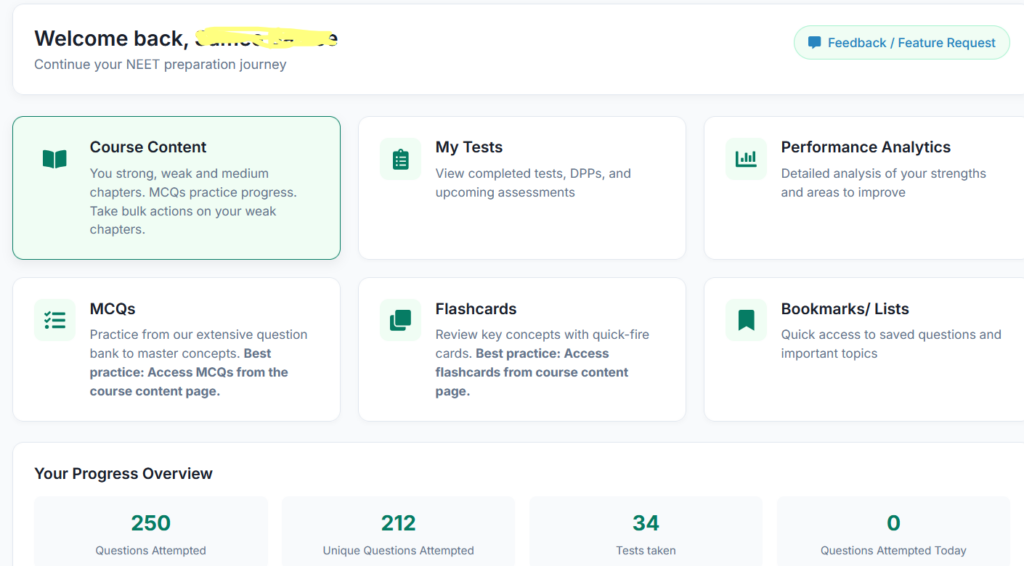
Log into NEETshala with your email. If you don’t have account, create a free account with your email. It just takes a few seconds. Once logged in, click on Course Content from the sidebar menu. Then select course ‘Focus 2026’ or ‘Focus 2027’. Now, you’ll land on your main dashboard. This is your central hub for navigating all the powerful features of your course.
Key Sections:
- Welcome Message: A personalized greeting to get you started.
- Navigation Grid: These cards are your primary way to access different parts of the course.
- Course Content: This is the most important link. It takes you to the chapter-wise progress dashboard where you’ll spend most of your study time.
- My Tests: View all the DPPs and Custom Tests you have created. You can attempt new ones or review completed ones from here.
- Performance Analytics: Get a detailed breakdown of your MCQ performance, accuracy, and trends over time.
- MCQs: A direct link to the question bank. However, the best practice is to access MCQs from the “Course Content” page for a more structured approach.
- Flashcards: A direct link to flashcards. The best practice is to access these from the “Course Content” page to focus on specific chapters.
- Bookmarks/Lists: Access all the questions you have saved or organized into custom lists.
- Your Progress Overview: This section gives you a quick, at-a-glance summary of your activity, including:
- Total Questions Attempted
- Unique Questions Attempted
- Number of Tests Taken
- Questions Attempted Today
- Feedback / Feature Request: We value your input! Use this form to give us feedback, rate your experience, or suggest new features to make the platform even better.
2. The Heart of Your Study: The Course Content Dashboard
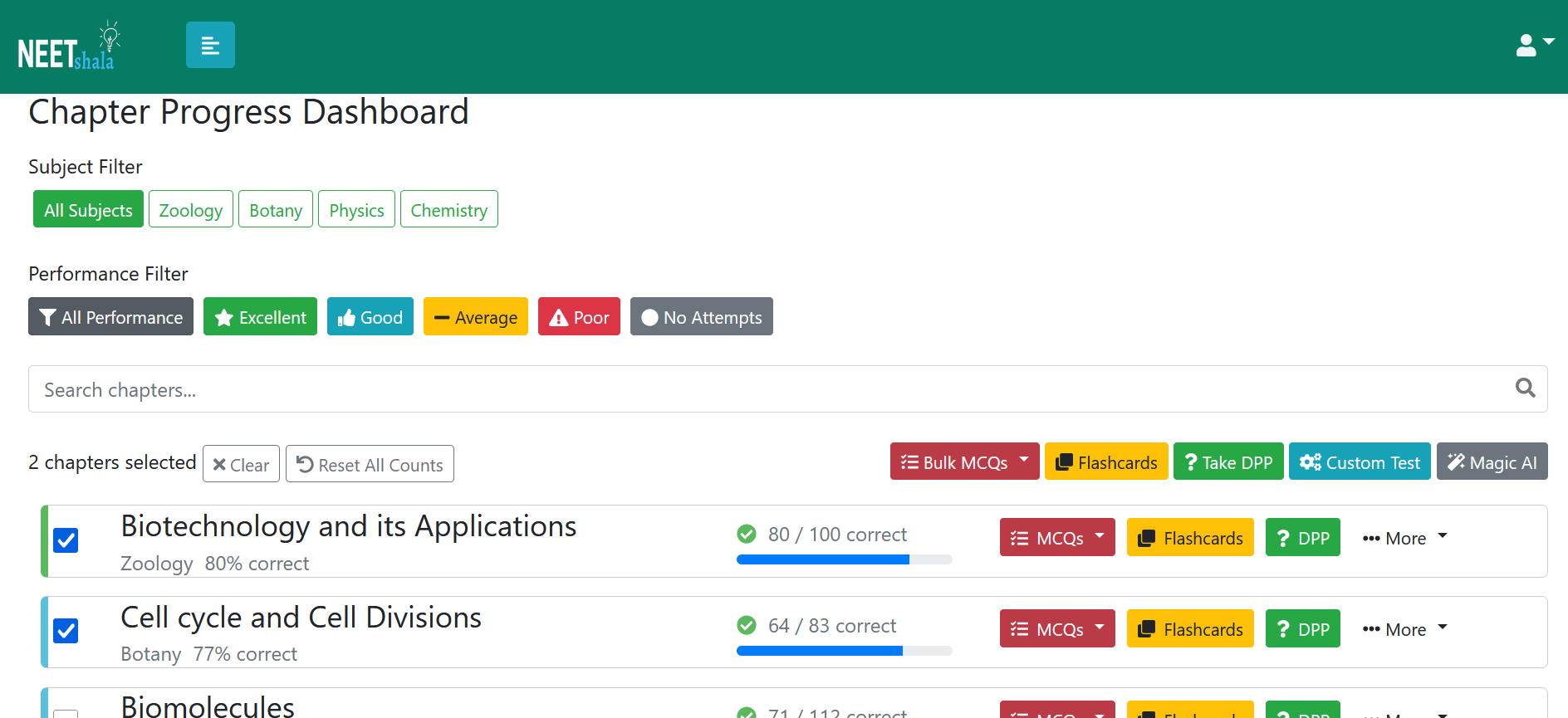
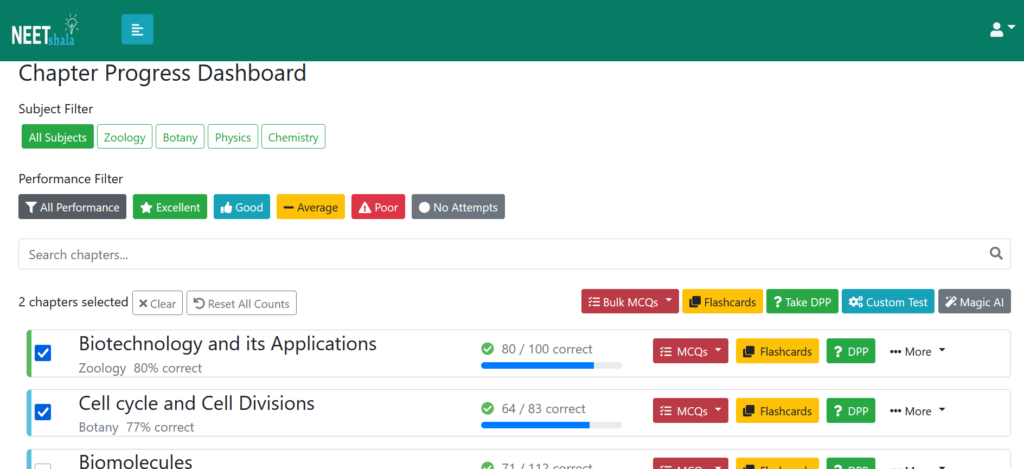
Clicking on “Course Content” from the main dashboard takes you to the Chapter Progress Dashboard. This is where you can see your performance in every chapter and launch targeted practice sessions. Most importantly, here you align your online preparation with your offline college or coaching centre. As your lecture completes a chapter, drag that chapter to the top and focus on that chapter.
Understanding the Chapter Cards
Each chapter is represented by a card with a colored border on the left, indicating your performance level based on your accuracy in MCQs:
- ■ Excellent (Green): 80% or higher accuracy.
- ■ Good (Blue): 60% – 79% accuracy.
- ■ Average (Yellow): 40% – 59% accuracy.
- ■ Poor (Red): Below 40% accuracy.
- ■ No Attempts (Grey): You haven’t practiced any MCQs for this chapter yet.
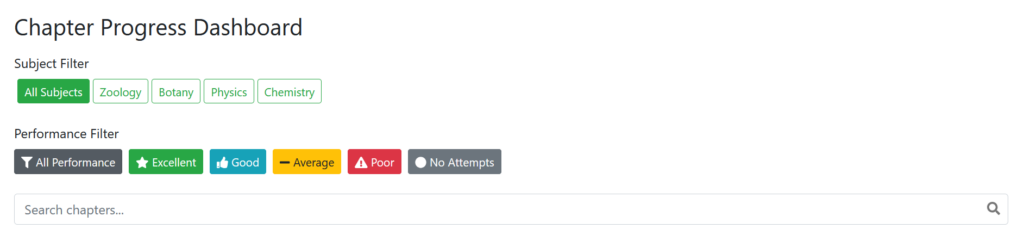
Filtering and Searching
At the top of the page, you have powerful tools to find exactly what you need:
- Subject Filter: Click on a subject (e.g., Physics, Chemistry) to see only the chapters from that subject. Click “All Subjects” to see everything again.
- Performance Filter: Click on a performance level (e.g., Poor, Average) to focus on chapters where you need the most improvement.
- Search Bar: Type a chapter name to quickly find it.
Actions for a Single Chapter
On each chapter card, you have a set of action buttons:
- MCQs: Click this dropdown to either “Practice MCQs” in a standard test format or enter “Focus mode” for a targeted, distraction-free practice session on that chapter.
- Flashcards: Launch a flashcard session for the key concepts in that chapter.
- DPP: Instantly start creating a Daily Practice Problem (DPP) pre-filled with this chapter. You can create and attempt one DPP for free to test how it works.
- More (…):
- Magic AI: (Premium Feature) Use our AI to get insights or generate questions for the chapter.
- Offline: (Premium Feature) Manually add or update your MCQ practice results from offline materials (e.g., textbooks, coaching modules) to keep your performance stats accurate.
- Reset: (Premium Feature) Reset all your online and offline attempt data for a chapter to start fresh.
Bulk Actions on Multiple Chapters
You can perform actions on multiple chapters at once.
- Select Chapters: Click the checkbox on the left of each chapter card you want to include.
- Use the Toolbar: As you select chapters, a “Selection Toolbar” will appear at the top.

From this toolbar, you can:
- Clear Selection: Deselect all chapters.
- Reset All Counts: (Premium Feature) Reset the progress for all selected chapters.
- Bulk MCQs: Start a practice session or Focus Mode session combining questions from all selected chapters.
- Flashcards: (Premium Feature) Start a flashcard session combining cards from all selected chapters.
- Take DPP: Create a DPP that includes all the selected chapters.
- Custom Test: (Premium Feature) Create a custom mock test using questions from the selected chapters.
- Magic AI: (Premium Feature) Use the AI feature on the context of all selected chapters.
3. Creating Personalized Practice: Daily Practice Problems (DPPs)
DPPs are short, focused practice sessions you can create to target specific areas. You can create one from the “My Tests” page or by using the “Take DPP” bulk action on the Course Content page.
Step 1: Select Subject(s)
First, choose the subjects you want to include in your DPP. You can select one, several, or “All Subjects” for a mixed practice. This is required only when you are creating DPP from My Tests Page. If you are creating DPP from Course Content page, you can directly select chapters.
Step 2: Choose Chapters
Select one or more chapters for your DPP. On Course Content page, click on ‘Take DPP’ button.
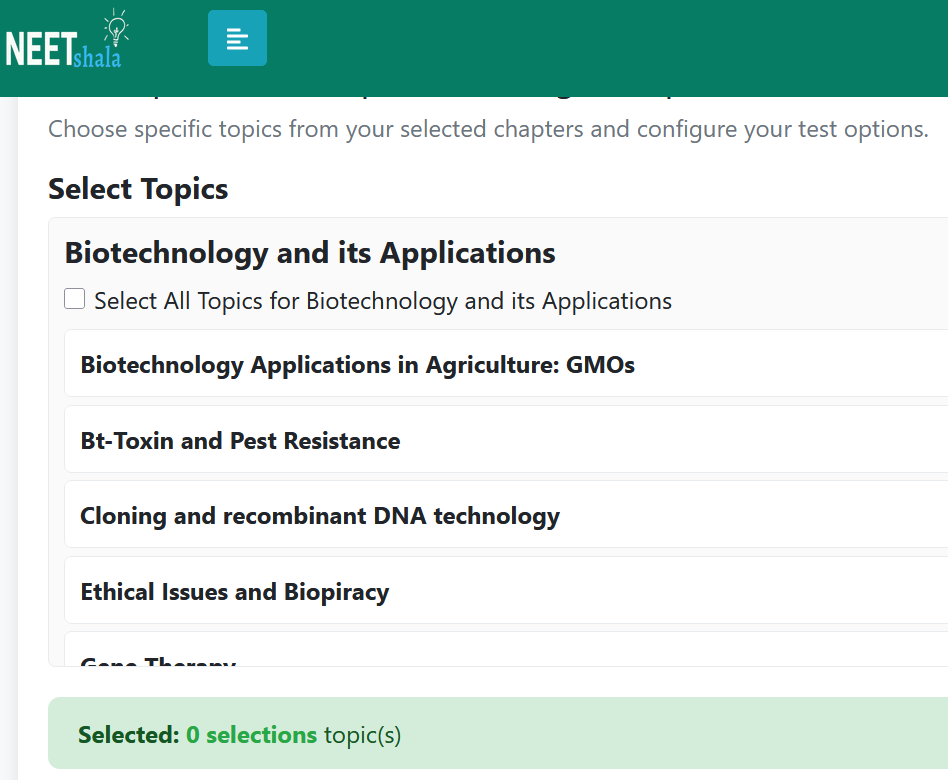
Step 3: Select Topics & Configure Options
This is the final and most detailed step.
- Select Topics: For each chapter you chose, you can either select all topics or drill down and select specific, individual topics to focus on.
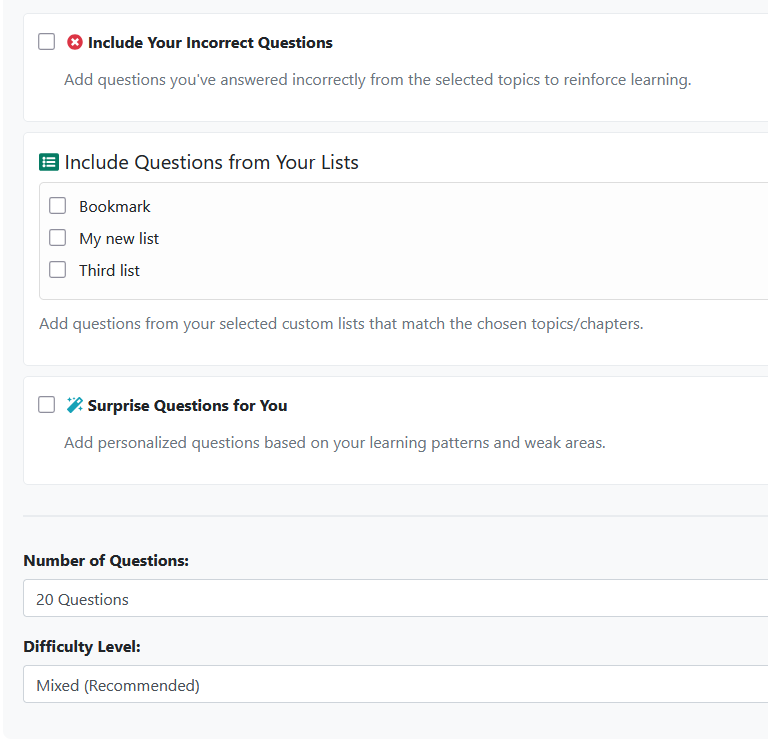
- Test Options:
- Include Your Incorrect Questions: A powerful feature to add questions you’ve previously answered incorrectly.
- Include Questions from Your Lists: Add questions from your bookmarked lists.
- Surprise Questions for You: Let our system add personalized questions based on your weak areas.
- Number of Questions: Choose the length of your DPP (10, 15, 20, etc.).
- Difficulty Level: Select Easy, Medium, Hard, or Mixed difficulty.
Once you click “Create DPP”, you’ll see a summary and can start the test immediately.
4. Simulating Exams: Creating Custom Tests
Custom Tests allow you to build longer, mock-test-style assessments. This is a premium feature. You can create one from the “My Tests” page or by using the “Custom Test” bulk action.
Step 1: Select Subjects & Chapters
Choose the subjects and then the specific chapters you want to include in your test. You can select as many as you need. This is required only when you are creating custom test from My Tests Page. If you are creating custom test from Course Content page, you will directly go to Test Types.
Step 2: Select Test Type
Next, choose the format of your test:
- Full Test: 180 questions, simulating the full NEET pattern. (Requires at least 4 chapters to be selected).
- Mini Test: 80 questions.
- Super Mini Test: 40 questions.
- Revision Test: A shorter test where you can select the number of questions (10, 20, or 30).
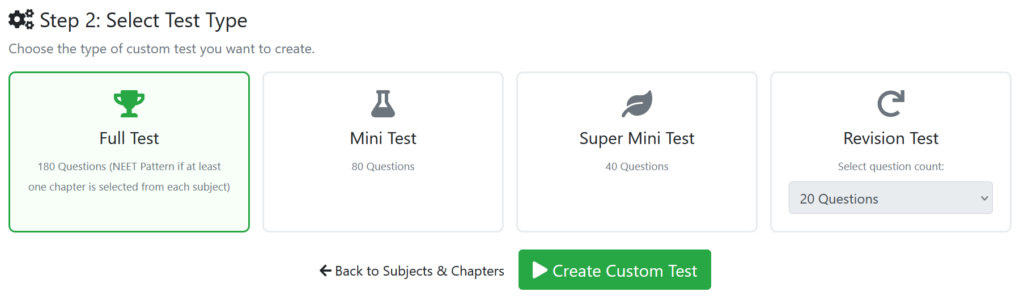
After selecting the type, click “Create Custom Test”. You’ll see a summary and can begin your test.
5. Reviewing Your Activity: My Tests
The “My Tests” page is your archive of every DPP and Custom Test you’ve created. You can access it from the main dashboard.
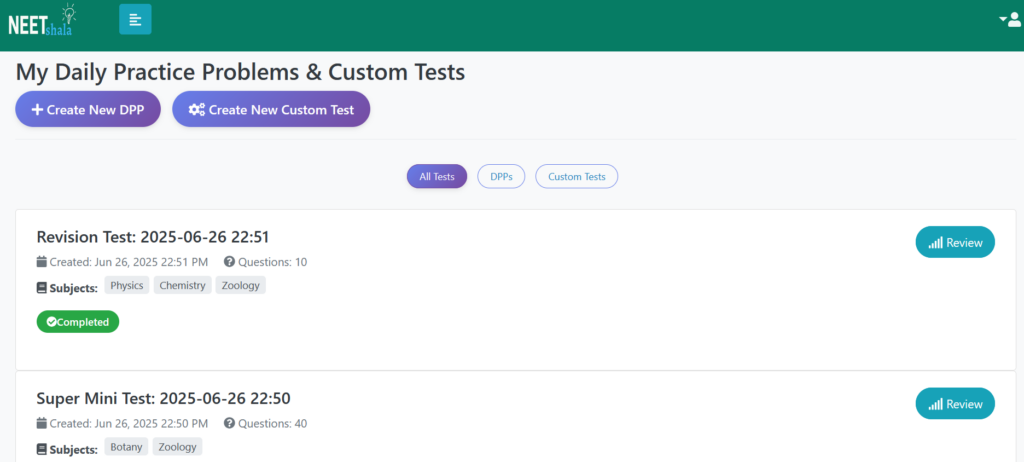
On this page, you can:
- Filter: Use the buttons at the top to view “All Tests”, just “DPPs”, or just “Custom Tests”.
- View Details: Each test card shows its name, creation date, number of questions, and the subjects/topics it covers.
- Check Status: A badge will show if a test is “Completed” or “Not Attempted”.
- Take Action:
- Attempt: For tests you haven’t taken yet.
- Review: For completed tests. This will take you to the results analysis page where you can see your score, correct/incorrect answers, and detailed solutions.
6. Deep Dive Analytics: Tracking Your Progress
The “Performance Analytics” page gives you a high-level overview of your MCQ practice habits and accuracy over time.
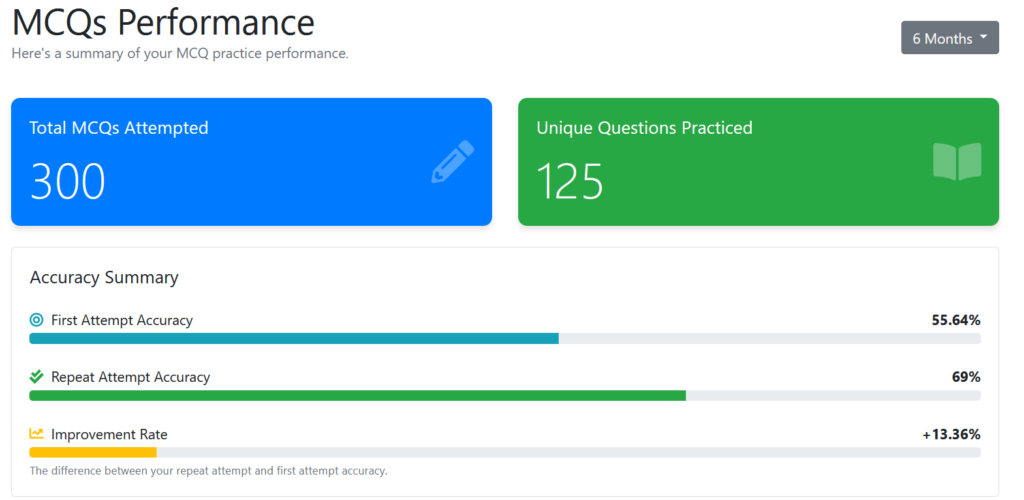
Key Metrics:
- Period Filter: View your stats for “All Time”, the “Last 6 Months”, “Last 1 Year”, etc.
- Summary Cards: See your total MCQs attempted and the number of unique questions you’ve practiced.
- Accuracy Summary:
- First Attempt Accuracy: Your accuracy on questions you are seeing for the very first time. This is a key indicator of your initial understanding.
- Repeat Attempt Accuracy: Your overall accuracy including all repeat attempts.
- Improvement Rate: The difference between your repeat and first attempt accuracy, showing how well you are learning from your mistakes.
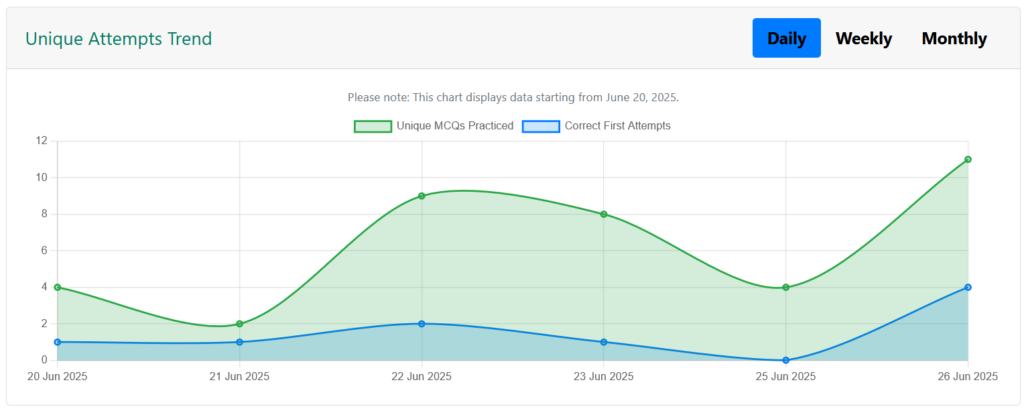
- Trend Charts: Visualize your progress with line charts showing your daily, weekly, and monthly attempts. There are separate charts for total attempts and unique question attempts.
Hope this guide helps you to navigate Focus-2026 and Focus-2027 courses on NEETshala. These courses act as your study companion and help you understand your weak areas and improve them. To enroll into these courses, click here for Focus-2026 and for Focus-2027.